In this article, I want to communicate and explain how to use the Som module in your organization and how it can change the way you can build your data collection object for XDM schema or any other object you want to manipulate.
The blog post will explain you on how to release this extension for your organization so you can test and implement this on your own.
Table of Content
What is the Som library ?
In theory, or in a simple world, everything would be working as explained in the adobe Experience League documentation. You have an event data layer, you receive an event and map it to the alloy method.
The reality is however always more complex, you data layer may not be completely XDM structure, it may miss data, you may need to manipulate the mapping. Handling these data layer object can easily become a nightmare and bring lots of mistake that break your code.
The Som library has been built as a safe way to simplify data manipulation for complex structure. I have written a whole article about this here. I will try to summarize the main points:
- Easy and safe retrieval of elements in complex object structure
- Easy and safe setting of variable in complex object structure
- Capability to manipulate the object efficiently
- Capability to log operations on objects
- Capabilities for multi instances so you can work on different nodes and/or log data
The Github repository will help you understand the methods available for you to manipulate large and complex object.
The Som Extension
To many clients, I propose the usage of the Som library and usually helped them if needed on how to integrate that library.
However, I have seen clients that are not working with Adobe Consulting organization being interested by such library but afraid to build their own extension to implement it in their eco-system.
It is possible to load such library in a Rule, but that may bring some undesirable behavior regarding rule exection order.
The best way to have that library fully functional would be to have an Extension and then use it in your environment.
Based on this, I found some times to develop a working extension.
It is now available in the github project /extension folder.
Official Extension vs Private Extension
One possible way to make that extension available would have been to make it publicly available in the official Adobe catalog.
For the reasons below I did not make that happen, what I currently offer is for client to copy the setup and create their own version of the Som library. So everyone will have their own private extension.
The reasons why I did not provide an official extension:
- An official extension is a great way to provide a single element to all companies but bring a single point of entry. All requests for enhancement would be brought to a single project and change made to accomodate some customers would impact other customers.
- The Extension and the Som framework has been made as Open Source, which means that anyone can further develop the extension for their own need. This bring flexibility and remove the dependency on me to further develop it if not available for that project.
- While the work and capabilities has been shown to Adobe product team for inspiration, they have decided to go via other route to handle XDM data structure. Therefore, I could not release it on the Adobe org, if I publicly offer this extension and leave the company, the extension could not be maintained as it will be linked to my own organization.
By providing the code source, you can continue to work on that extension if I am not part of the Organization.
Of course, if anyone is interested by additional or enhancement features, they can open a Github request and I can decide to develop that globally or not, depending if that is possible.
If people/customers are raising the request to make that extension publicly available, please let me know via Github request and which organization. I will try to convince the Adobe team to release it in Adobe organization, so it won’t be impacted by my account being deleted, and remove the issue number 3, that I am seeing today.
As an alternative approach, there is a possibility to approve organization to use private extension, in case this is a road you would like to pursue.
I can provide you with the right to use the extension built on my organization.
Following this process:
https://experienceleague.adobe.com/en/docs/experience-platform/tags/api/guides/extension-packages
You will need to create Github request, and providing your organization ID in that request and I will add you to the list of organization I allow to use the extension.
Implementation
Copying the github project
In order to create your own version of the Extension, you would need to download the github repo link above.
4 options are offered:
- Directly via the UI, you can download it as a zip file.
- Via the git command line for HTTP:
git clone https://github.com/pitchmuc/Simple-Object-Manager.git - Via the git command line via SSH
git clone git@github.com:pitchmuc/Simple-Object-Manager.git - As explained above, send me a request on Github so I allow your organization to use the private extension already published.
We will focus on setting up your own extension so you have complete control over the extension development. Once you have that folder “Simple-Object-Manager” available, you can directly work in the “/extension” folder.
Changing extension name
By default the extension is working, however, as I already privately published the extension on my own IMS org, the extension name cannot be renamed.
Therefore, you will need to change that name to upload it in your own organization.
In order to do so, you will open the extension.json file, located in extension/.
The first lines of the file will look like this:
{
  "displayName": "Simple Object Manager (Som)",
  "name": "som",
  "platform": "web",
  "version": "1.0.0"
} You will have to change the “name” and I would recommend to change the displayName as well to represent the organization you are in, such as (for the Adobe organization).
{
  "displayName": "Adobe - Simple Object Manager (Som)",
  "name": "som-adobe",
  "platform": "web",
  "version": "1.0.0"
} Getting extension developer access
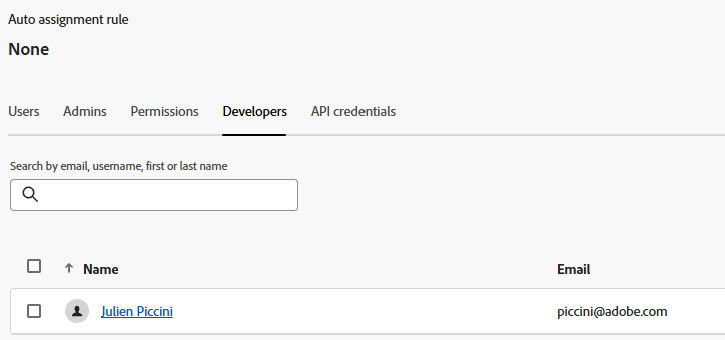
Once you have changed the name, or before, you will need to have developer access to release the extension in your organization.
In order to do that, you will need to have the following permission in one of the Adobe Experience Platform Data Collection Product Profile:
- Being a developer
- Being assigned in the Product Profile that allow to develop Extensions

Creating your developer project
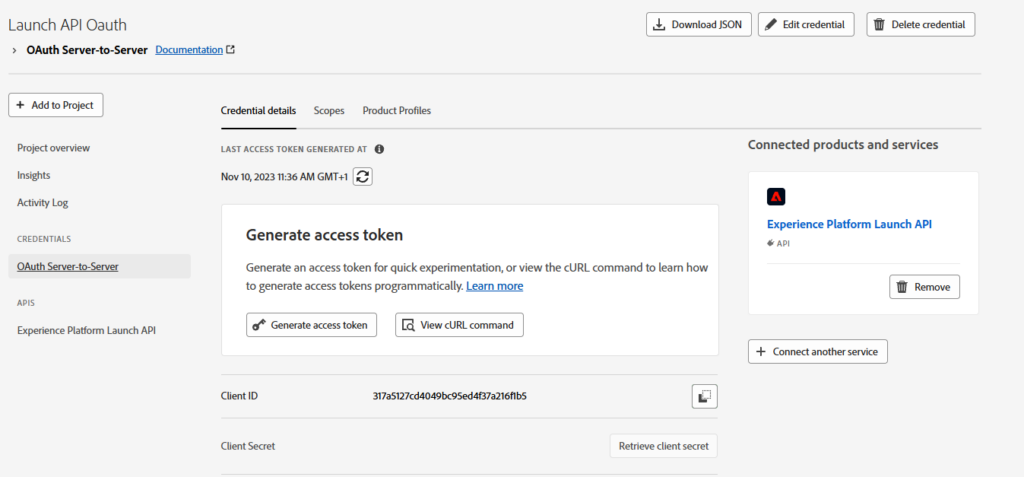
Once you have your correct access right, you can create your project in the developer console.
Once you connect your Project with Experience Platform Launch API, you can retrieve your Client ID and your Secret, that would be needed for uploading the package in your organization.
The information can be found in Credentials > Oauth Server-to-Server
Packaging and Uploading the extension
Once you have everything in place, you can directly package the extension for your organization.
In order to do that, you would need to have npm install.
You can install it directly from the official website: https://www.npmjs.com/
Once that is done, you can go to the repo of the project, inside the /extension folder and run the following commands:
npx @adobe/reactor-packager // it will prepare a package

npx @adobe/reactor-uploader // It will upload the extension for devIn order to run the uploader method, you will need to provide your client ID and your secret that you have created in the developer console project.
Once the uploader method has been used, you can start testing the extension in a Dev property.
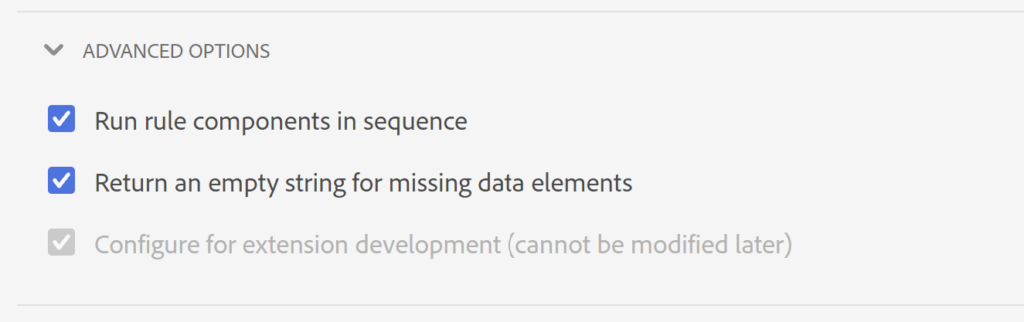
It is a specific type of property in Launch that allows you to test extension before releasing them for your or generally for other.
This option is available when you create a property, and cannot be changed later.
In order to test your extension, you would need to install it, and you an search in the catalog. If you did not change the logo icon, it should look something like this:
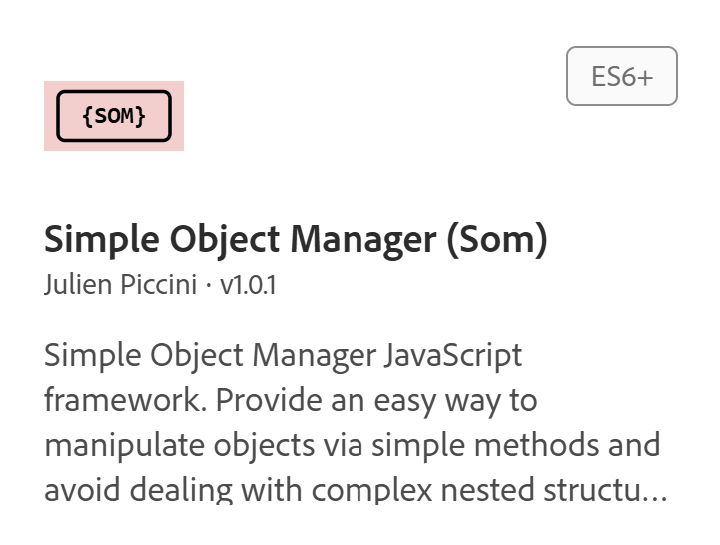
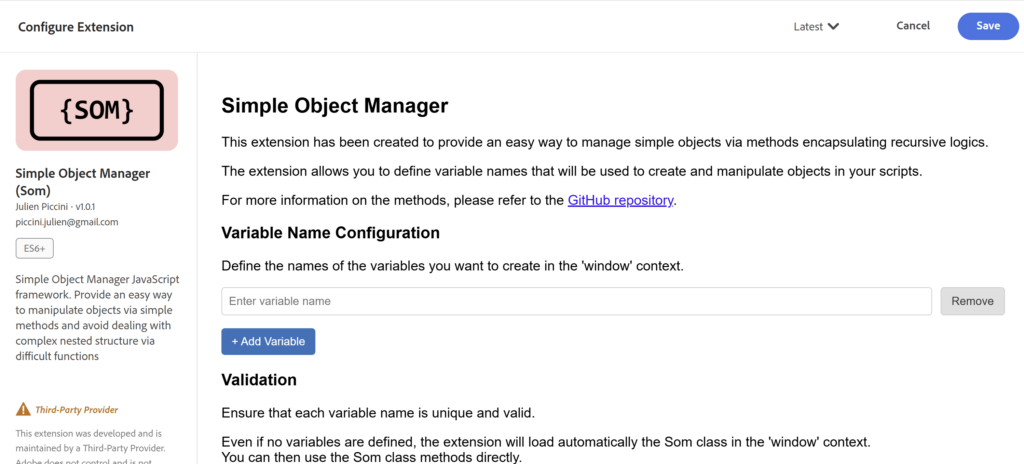
and once you install it, you can see the following configuration possibility:
Releasing the extension Privately
Once you have tested the extension is working as expected, you can release it on your own organization via this command:
npx @adobe/reactor-releaserThis will automatically pick the package with the highest version on your development environment and make it available to you.
Using the Extension
Once the extension has been installed on your property, you have seen that you can define in the configuration variables names. These variable names will be generated as a Som object and directly available for all of your rules or data elements.
Use Cases
In the use-cases below, I would assume that you want to track the data in the XDM format and you have created a new global variable called xdm via the extension configuration.
Use-Case 1 : Page Data Retrieval
As you can see below, we can use the SOM to create a safe variable based on you dataLayer object and also use to fill the XDM object.
// get your Google Data dataLayer as a Som object

myDataLayer = new Som(dataLayerHandler);
// using the som Object to build your xdm.web.webPageDetails object
// assuming the following structure in your dataLayer:
/***
{
    page: {
        "name": "Home",
        "id": "4d240591-acad-4e01-a055-26e492529343",
        "type": "Home",
        "viewport": "XXL",
        "sitemap": "home",
        "language": "de",
        "country": "de",
        "nameSitemap": "home"
    },
    platform:{
      "brand": "my Brand",,,
      "name": "my Platform",
      "id": "s12d213",
      "medium": "web",
      "environment": "prod",
      "version": "2.50.1"
  }
}
*/
xdm.assign('web.webPageDetails.URL', window.location.href);
xdm.assign('web.webPageDetails.name', myDataLayer.get('page.name','unknown'));
xdm.assign('web.webPageDetails.server', window.location.hostname);
xdm.assign('web.webPageDetails.language', myDataLayer.get('page.language','unknown'));
xdm.assign('web.webReferrer.URL', document.referrer);
xdm.assign('web.webPageDetails.pageViews.value', 1);
alloy("sendEvent", {
    xdm: xdm.get()
});This way feel very similar to the old s object setup that the clients are using.
use-case 2 : Product View Tracking
// get your Google Data dataLayer as a Som object
myDataLayer = new Som(dataLayerHandler);
// using the som Object to build your xdm commerce object
// assuming the following structure in your dataLayer:
/***
{
    event: 'productView',
    ecommerce: {
        detail: {
            products: [
                {
                    name: "Triblend Android T-Shirt",
                    id: "12345",
                    price: "15.25",
                    brand: "Google",
                    category: "Apparel",
                    variant: "Gray"
                }
            ]
        }
    }
}
*/
if(myDataLayer.get('event') === 'productView'){
    var product = myDataLayer.get('ecommerce.detail.products.0');
    xdm.assign('commerce.productViews.value', 1);
    xdm.assign('productListItems.[0].SKU', product.id);
    xdm.assign('productListItems.[0].name', product.name);
    xdm.assign('productListItems.[0].price', product.price);
    xdm.assign('productListItems.[0].currencyCode', product.currencyCode, 'USD');
}
alloy("sendEvent", {
    'xdm': xdm.get()
});Use-Case 3: Track Order
// get your Google Data dataLayer as a Som object
myDataLayer = new Som(dataLayerHandler);
// using the som Object to build your xdm commerce object
// assuming the following structure in your dataLayer:
/***
{
    event: 'purchase',
    ecommerce: {
        purchase: {
            actionField: {
                id: 'T12345',                         // Transaction ID. Required for purchases and refunds.
                affiliation: 'Online Store',
                revenue: '35.43',                     // Total transaction value (incl. tax and shipping)
                tax: '4.90',
                shipping: '5.99',
                coupon: 'SUMMER_SALE'
            },
            products: [                                // List of productFieldObjects.
                {
                    name: 'Triblend Android T-Shirt',   // Name or ID is required.
                    id: '12345',
                    price: '15.25',
                    brand: 'Google',
                    category: 'Apparel',
                    variant: 'Gray',
                    quantity: 1,
                    coupon: ''                           // Optional fields may be omitted or set to empty string.
                },
                {
                    name: 'Donut Friday Scented T-Shirt',
                    id: '67890',
                    price: '33.75',
                    brand: 'Google',
                    category: 'Apparel',
                    variant: 'Black',
                    quantity: 1
                }
            ]
        }
    }
}
*/
if(myDataLayer.get('event') === 'purchase'){
    var purchase = myDataLayer.get('ecommerce.purchase');
    xdm.assign('eventType', 'commerce.order');
    xdm.assign('commerce.order.purchaseID', myDataLayer.get('ecommerce.purchase.actionField.id'));
    xdm.assign('commerce.order.priceTotal', myDataLayer.get('ecommerce.purchase.actionField.revenue'));
    xdm.assign('commerce.order.taxAmount', myDataLayer.get('ecommerce.purchase.actionField.tax'));
    xdm.assign('commerce.shipping.shippingAmount', myDataLayer.get('ecommerce.purchase.actionField.shipping'));
    // loop through products
    var products = purchase.products;
    for(var i=0; i<products.length; i++){
        var product = products[i];
        xdm.assign('productListItems.['+i+'].SKU', myDataLayer.get('ecommerce.purchase.products.'+i+'.id'));
        xdm.assign('productListItems.['+i+'].name', myDataLayer.get('ecommerce.purchase.products.'+i+'.name'));
        xdm.assign('productListItems.['+i+'].priceTotal', myDataLayer.get('ecommerce.purchase.products.'+i+'.price')*myDataLayer.get('ecommerce.purchase.products.'+i+'.quantity'));
        xdm.assign('productListItems.['+i+'].quantity', myDataLayer.get('ecommerce.purchase.products.'+i+'.quantity'));
        xdm.assign('productListItems.['+i+'].currencyCode', myDataLayer.get('ecommerce.purchase.products.'+i+'.currencyCode'), 'USD');
    }
}
alloy("sendEvent", {
    'xdm': xdm.get()
});